
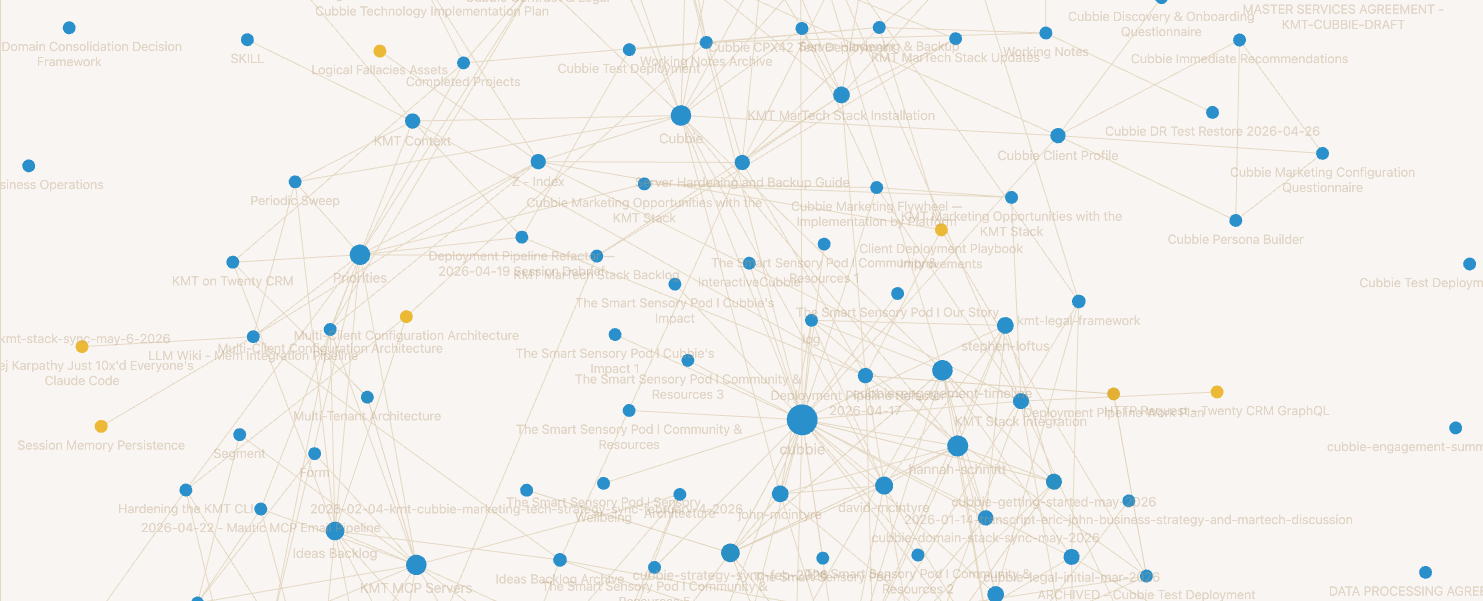
How I Built a Knowledge Base That CHANGED MY LIFE!
Most meetings I’ve ever been in have the same issue; I’m trying to listen, trying to give the person across from me proper social feedback, nodding in the right places, asking good follow-up questions. And simultaneously, I’m trying to scribble notes. I’d invent my own shorthand, like a courtroom stenographer except without any of the training or the skill. Just little codes and abbreviations that I was sure would trigger my memory later.
…and, of course, they rarely did.
”Oh, I’ll Remember This…”
Here’s what actually happened with those notes. I’d finish the meeting, close the notebook or the app, and tell myself I’d flesh them out later and then almost never did. Instead, I’d depend on my flawed memory and hope the bullet points would be enough to reconstruct the conversation.
They weren’t. I’d misremember decisions. I’d lose the context around why we chose option A over option B. I’d forget who said what. The best I could do was either ask a colleague who was also in the meeting, suck up my pride and ask the person I’d met with to remind me, or just fake it and hope the context resurfaced naturally. DO NOT TELL ME I AM ALONE IN THIS! Because I won’t believe you.
The older I get and the more experience I have, the worse this scenario gets. More projects, more people, and more decisions stacking up across dozens of conversations means the volume of information simply outpaces what my poor little brain can hold.
I work in technology across dozens of projects of various complexity with dozens of colleagues and external partners. Trying to remember the decisions that were made and bring them into the proper context of my job was pretty impossible.
A Flash of Insight via Podcast
I first heard about this approach on a podcast called Behind the Craft by Peter Yang, where he interviewed product coach Teresa Torres about building a personal operating system with Claude Code and a free note-taking app called Obsidian. As she described how she worked, her process immediately resonated with me. I went home, watched the episode again, downloaded Obsidian and Claude Code, and started experimenting that same day.
The first thing I discovered was that I didn’t need to learn Markdown or any particular formatting. Claude writes almost all of my notes now. I have a way of working where we discuss something iteratively, get to a conclusion, and then I ask Claude to take a note of it. Either detailed or summary, depending on what we’re working on. That alone was a significant improvement over my old approach. Much more detailed and much more consistent.
Then Andrej Karpathy’s LLM Wiki concept started getting attention. The core idea is simple: instead of fancy databases or complex retrieval systems, you give an LLM well-organized markdown files and let it maintain an index, summaries, and cross-references across all of them. It reads everything, follows the links, and keeps the knowledge structured. I asked Claude to evaluate the concept and figure out how we could use it, and we built the wiki from there.
The Tools (and Why Each One Matters)
The system uses four tools, and each one has a specific job.
You don’t have to use Mem specifically. Any tool that gives you text output from your meetings will work. The key is that something is capturing the full context of your conversations, not just your hastily scribbled shorthand. Mem works for me, and I recommend it.
How the Pieces Connect
The workflow looks like this:
🎙️ Capture. I take a meeting. Mem records it, transcribes it, and produces a summary. I tag it with the relevant project and business context.
⬇️ Pull. When I’m ready, I open Claude Code in my Obsidian vault and tell it to grab the latest notes from Mem. It pulls them down and drops them into a Raw folder in the vault. You can also just copy and paste your meeting notes into this folder manually. Both approaches work.
🧠 Ingest. I tell Claude to process the new notes. It reads through each one, identifies every person, organization, and topic mentioned, and then either creates new wiki pages or updates existing ones. If it encounters someone who was just mentioned in passing, it asks whether to create a page or skip them.
🔗 Compound. This is where it gets interesting. Each time Claude ingests a new batch of notes, it enriches the pages that already exist. A person’s page accumulates every interaction across every meeting. A topic page grows with each new conversation that touches on it. An organization page builds up the full history of your relationship. The knowledge compounds.
🔍 Query. Now I can ask Claude anything about my accumulated knowledge. Before a meeting, after a meeting, or just when I need to remember a decision from three months ago.
What This Actually Looks Like
Here’s a real example. I’m working on an ambitious project at work that we’re calling “The Research Hub.” It’s covered a lot of ground, involves a bunch of people, and the decisions have been piling up across multiple meetings over several months.
Before a meeting about the research hub, I open Claude and say: “I’m about to jump into a meeting on the research hub. Can you go through our notes and give me a quick summary of where we are, what we’ve decided, and what the next steps are for everybody?”
Claude starts at the research hub topic page, sees the people and source notes linked from it, follows those links, reads the context about each person’s involvement, and comes back a moment later with a full summary. Every decision, every open question, every action item, organized and ready.
I do the same thing with people. “I’m about to jump on a call with John Doe. What did we last talk about, and what projects are we working on together?” Claude pulls up everything it knows about John Doe across every meeting where his name came up and gives me the full picture.
This system remembers and accesses things in far greater detail than I possibly could. Maybe another human could keep all of this in their head. This human can’t.
Getting Started
If you want to set this up, here’s the path of least resistance.
Step 1: Download Obsidian. Go to obsidian.md, download the app, and create a new vault. A vault is just a folder on your computer. Call it whatever you want. It’s FREE!
Step 2: Download the Claude Desktop app. Go to claude.ai/download and install it. You’ll need a paid Claude plan (Pro or Max). Open the app and click the Code tab. Once you start using this more, you WILL need a higher subscription level.
Step 3: Point Claude at your vault. In the Code tab, select your Obsidian vault folder as the project folder. Choose “Ask permissions” mode so you can see everything Claude does before it happens.
Step 4: Set up the wiki structure. Tell Claude: “I want to set up an LLM Wiki in this vault based on Andrej Karpathy’s concept. Create a wiki folder with subfolders for sources, people, organizations, and topics, plus an index and a log file. Also create a Raw folder for source material. Then create a Claude Skill file that explains how the wiki works so you know how to maintain it in future sessions.”
Claude will build the structure and write its own operating manual. That’s one of the best parts of this. The AI documents the system for itself so future sessions know how to pick up where you left off.
Step 5: Drop in your first source. Take a recent meeting note, paste it into a file in the Raw folder, and tell Claude to ingest it. Watch what happens. It will read the note, ask you a few questions about what to emphasize, and create your first set of wiki pages.
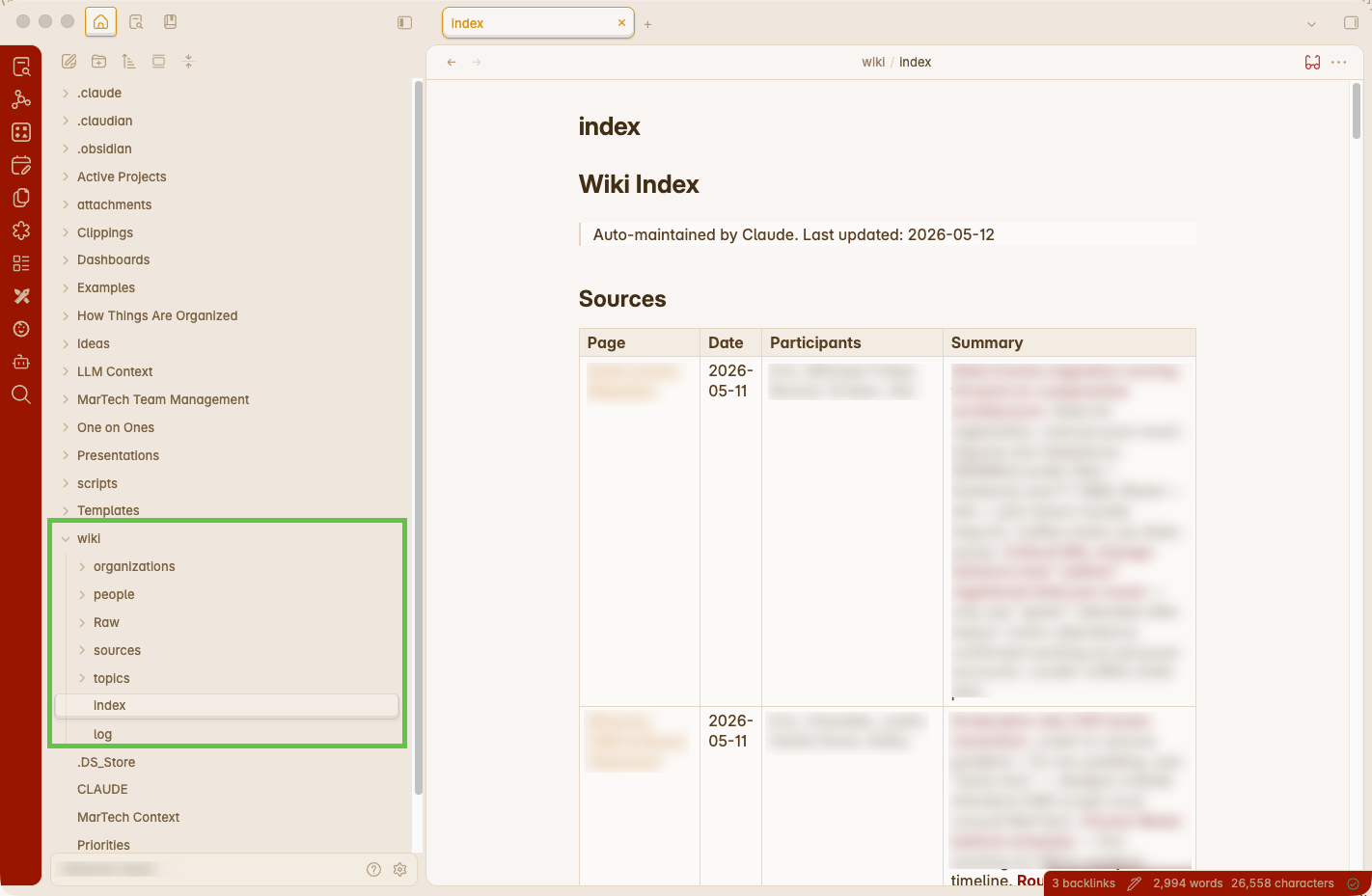
Step 6: Refine, if necessary. After you’ve added a few notes, check out the individual files that the system creates and double check for correctness. If that looks good, ask a question that you know the system could answer based on the notes you’ve already ingested. If there are improvements, or customizations you would like to see in these summaries, ask Claude to update the LLM Wiki Skill, that was created earlier, with your changes.
From there, keep feeding it. The more sources you add, the richer the cross-references become and the more useful every query gets.
Back up your vault. Once you’ve invested time building this, protect it. I use Backblaze for full-machine backup on top of Time Machine, plus separate backups of my Obsidian vaults. As this system becomes more and more valuable, you will want to protect it with backups and redundancy.
Want to automate the Mem pull? If you use Mem.ai and want to skip the manual copy-paste, you can set up an API connection. Mem has a straightforward API, and Claude can build the connector script for you. Just say: “I want to set up an API connection to Mem.ai so we can pull my meeting notes automatically.” Claude will walk you through it. This is entirely optional. Pasting notes into the Raw folder manually works fine.
Where This Goes From Here
I’ve been running this system for a few months. The initial investment was not complex but it took me the better part of six hours to go through my backlog of existing notes and build out the wiki. But that investment has already paid for itself many times over.
If I could go back to the beginning, I would have set up the LLM Wiki from day one. Not everything in my Obsidian vault lives in the wiki. I have project notes, ideas, and reference material that sit in other folders entirely. But the wiki is where the compounding happens, and starting it earlier means more compounding.
A year from now, this will have hundreds of notes across dozens of projects, people, and topics. A full, searchable history of every meaningful conversation I’ve had, organized and cross-referenced by an AI that never forgets.
If you set this up and want to compare notes on how it’s going, drop me a line.
Resources that helped me build this:
- Teresa Torres: Build Your Personal OS with Claude Code (the podcast that started it all for me)
- Andrej Karpathy’s LLM Wiki Explained (the concept behind the wiki architecture)
- Claude Code + Obsidian = Unstoppable (a solid walkthrough of how Claude Code and Obsidian work together)
- Build Your Own AI Second Brain (for those who want to take this much further)
Frequently Asked Questions
Q: Do I need to know how to code or use the command line? A: No. The Claude Desktop app gives you a visual chat interface. You point it at your Obsidian vault folder, talk to it in plain language, and Claude handles all the file creation and formatting.
Q: How is this different from just keeping notes in Apple Notes or Notion? A: The difference is cross-referencing and compounding. Regular note apps store individual documents. This system connects every mention of a person, topic, or organization across all your notes, building a web of context that gets richer with every source you add.
Q: How much does this cost? A: Obsidian is free. Mem.ai has free and paid tiers. The Claude Desktop app requires a Pro plan ($20/month) or Max plan. There are no additional infrastructure costs. Everything runs on your computer as plain files and you don’t need a super chunky computer, since most of the processing is taking place on Anthropic servers.